How do I export leads from my RLM account?
To export leads, log into your RLM account and complete the following:
- Apply filters, if applicable, so you are viewing the leads you’d like to export on your Leads Listing Page.
- These can be for open, closed, all, or deleted leads.
- Once you view what you’d like to export, click the Export button at the top right corner of your screen.
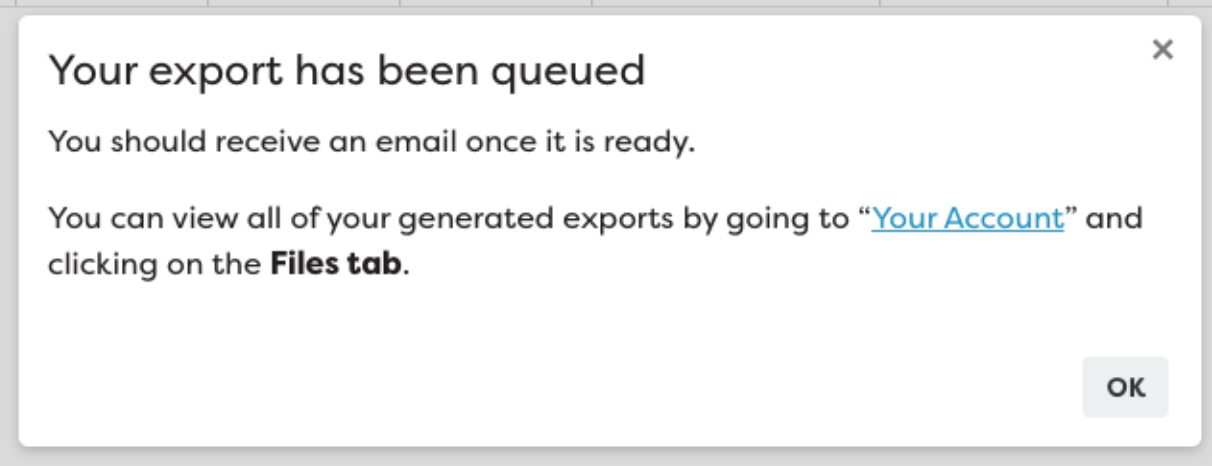
- You will get a pop-up notification, as shown below:
- Click OK
- You will receive an email once the export is ready; however, as mentioned above, you can also view all of your generated exports by going to “Your Account” and clicking on the Files Tab.
- You can find this by clicking the circle in the top right corner containing your initials, then “Your Account,” and selecting “Files” under Edit User.
- From here, you can download or delete selected export files. Just click the file to highlight it and select either “Download Selected” or “Delete Selected.”