Applies to: Broadlume Payments
Covers how to read a monthly Fee Statement from the payment processor and use it reconcile against your bank statements.
Does not cover: Cyncly Payments, Cyncly Pay, or Payments Flex
You can match the reconciliation report to identify all the individual transactions in your monthly fee statement. When pulling the date range of the reconciliation report, please remember to look at the following business day after a new month begins to account for how batching and settling time frames work.
For example, if June's statement started on June 1, you will set your search to begin on June 2. If the last day of June was the 30th, a Friday, you will end your search window on the next business day, Monday, July 3rd. So, the search parameters to match June’s transactions in the reconciliation report to June's fee statement would be June 2 - July 3.
For example, if June's statement started on June 1, you will set your search to begin on June 2. If the last day of June was the 30th, a Friday, you will end your search window on the next business day, Monday, July 3rd. So, the search parameters to match June’s transactions in the reconciliation report to June's fee statement would be June 2 - July 3.
Enhanced Fee Statements
The fee statements report provides a detailed summary of Deposits, Sales, and Fees to provide insight into your business. Please Note: The Total Deposited section is the only one that may include transactions from other months. The other sections only look at transactions taken in the current month.
Fee Summary
The Summary section provides highlights, including total sales and fees. Use the date picker to select a time frame to view. Note that data for the previous month is updated and available on the 8th of the month.
Deposits
The deposit section displays the net deposits for the month. Clicking on the deposit date ID opens the Deposit report details.
Fee Overview
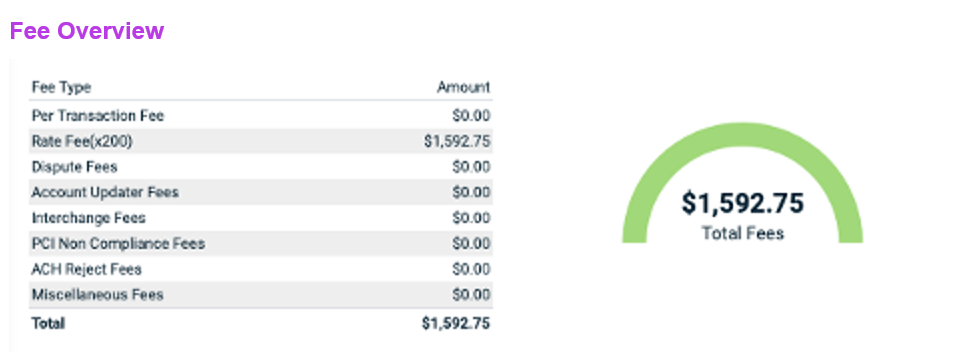
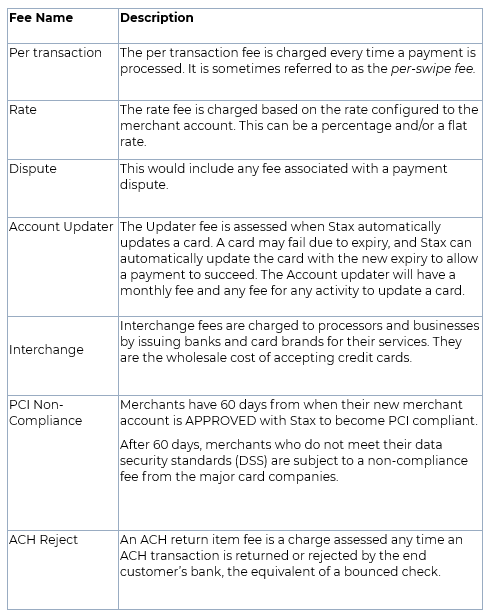
The fee overview provides a breakdown of the fees paid in the month. The overview may appear differently depending on transactions, rates, and accounts.
The fee overview provides a breakdown of the fees paid in the month. The overview may appear differently depending on transactions, rates, and accounts.
Daily Sales
Daily sales display the total sales and fees associated with the sales for a particular day.
Card Processing Summary
The card processing section details sales and fees based on the card type and whether or not the card was present.
Payment Method
The payment method section shows Debit, Credit, and ACH/Other processing amounts.
Transactional Types
The transactional section displays in-store (Card Present (CP)) or online sales (Card Not Present (CNP)) and Direct Bank transactions (ACH).
Card Brands
The card brand section displays the processing amounts for each card brand (VISA, MasterCard, AMEX, etc.)
The volume section provides each brand's transaction type, transaction volume, processing amounts, and associated fees.
Refunds and Adjustments
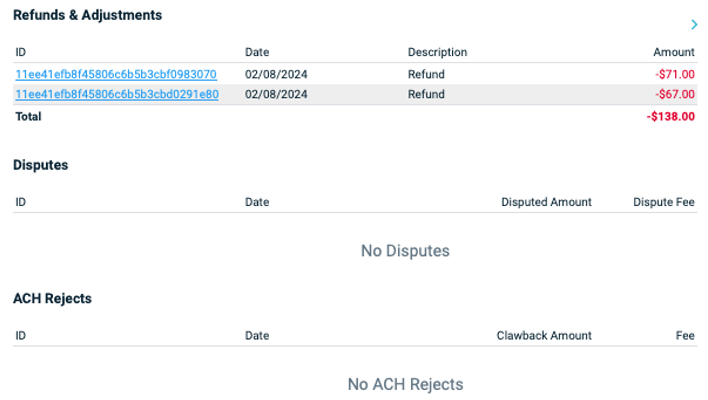
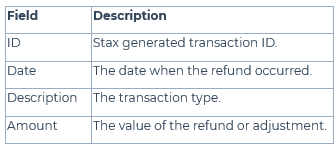
Any other activity, including refunds and disputes, are displayed in this section.
Clicking on the refund will take you to the payments section with a description of the refund transaction.
Any other activity, including refunds and disputes, are displayed in this section.
Clicking on the refund will take you to the payments section with a description of the refund transaction.