Applies to: RollMaster (RM) Core
Menu path: Owner Functions > True Job Cost View
This module works similarly to the View Job Cost module accessible from the Order Entry module and the Job Cost menu. The differences are as follows: In the Assigned Order Lines box, the Overbill amount collected on each material line will display in the Overbill column. In the Job Cost Totals screen, the total Overhead amount collected on the Job along with the total Overbill amount will display at the bottom right of the screen. (Important Note: If any material lines on a Job do not have inventory assigned—even if a PO for that material has been created in the system—those lines will not display in this module.)
When you enter this module, the True Job Cost View screen will appear as follows:
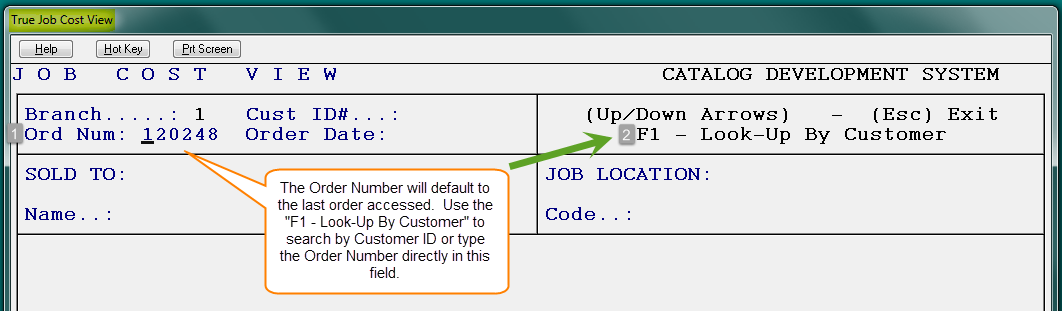
The cursor will be positioned at the Ord Num (1) field; type in the number of the job you would like to view costs on and hit enter or use the “F1 – Look-up By Customer” (2) feature to locate the job you wish to view. The system will bring up an Assigned Order Lines box as follows:
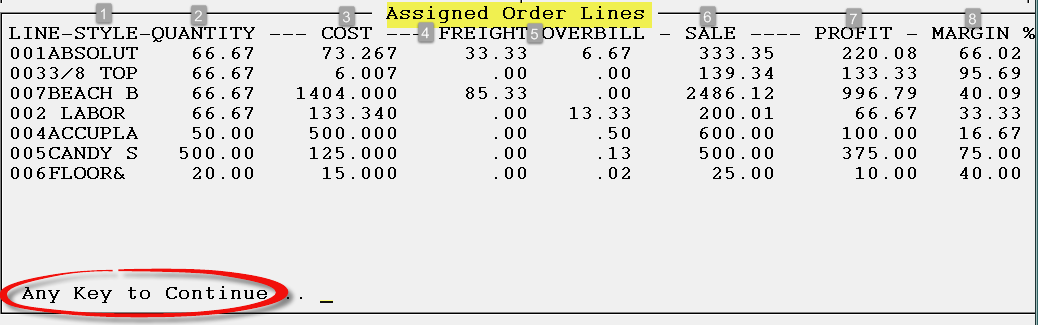
All Material lines with assigned material will appear in this screen. Labor and Special Charge lines will instantly appear. In the STYLE (1) column, only eight characters of the style name will display. The information in the QUANTITY (2) column is pulled from the Working Quantity column in the Enter Line Items screen. The COST (3) and FREIGHT (4) column values are initially pulled from the Inventory Maintenance module. These values are then updated through the Review P.O. History feature when a Vendor Invoice is posted in Accounts Payable Open Item Maintenance. The OVERBILL (5) column displays the total overbill amount accrued on each line. The SALE (6) column displays the total sale price of each line. The PROFIT (7) column displays the total profit to be made on each line based on the current costs and sale price. The MARGIN % (8) column displays the current profit margin. Important Note: If a line has a cost but no sale price, the PROFIT (7) and MARGIN % (8) columns will display negative figures. In this case, you should only be concerned with the bottom line profit and margin % for the total job, which can be viewed in the next screen. To proceed to the next screen, press Any Key to Continue. The Job Cost Totals screen will appear as follows:
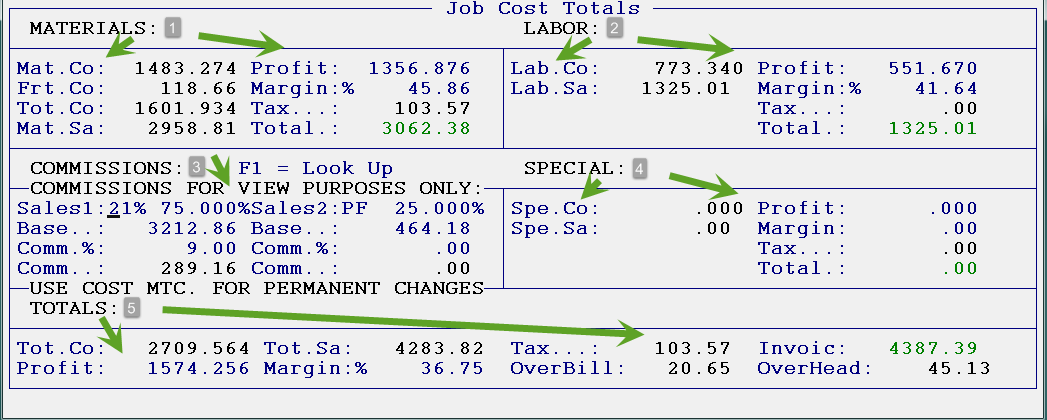
Below, this screen has been divided into five parts (MATERIALS, LABOR, COMMISSIONS, SPECIAL, & TOTALS) in order to explain each in greater detail. MATERIALS (1) - this section breaks out just the material lines on the Job. It displays the following: the combined cost of all the material; the combined freight cost; what the material was sold for (less tax); the total profit on materials; the profit margin on just the material lines; the total tax charged for material; and finally, the total sale on materials plus tax. Please Note: If tax is charged on the cost of material (Contract Sale), an asterisk will appear in the tax field as illustrated in the following example: Tax..*: 69.30.LABOR (2) - this section breaks out just the labor lines on the job. It displays the following: the combined cost of all labor; what the labor was sold for; the total profit on labor; the profit margin on labor; the total of any tax charged on labor; and finally, the total sale on labor plus any tax.COMMISSIONS (3) - this section calculates the salesperson commission based on the information that was entered in the Salesperson Maintenance module. It displays the Salesperson ID, the commission base, the commission percentage, and the total commission to be paid. If a second salesperson is tied to this job, that information will be calculated here as well. This is the only part of the screen that can be accessed. Any changes typed in this screen will be informational only; they will not update Salesperson Commissions. Please Note: The system does not include tax when calculating the commission base.When the Job Cost Totals screen first prompts, the cursor will be positioned at the “Salesrep1” field. If you need to look up a Salesperson ID, use the F1 key. You can make temporary changes to the salesperson commission information to see how different percentages affect the commission amount and the total job margin, but no changes will save in this screen. The only way to exit this screen is to enter through the Commission section until you get to the following prompt: Continue? (Y,N) Y. If you hit enter again after reaching this prompt, the system will take you back to the Job Cost View screen.SPECIAL (4) - this section refers to order lines on a job that are neither material nor labor lines; there is never any inventory attached to these lines. Examples include finance charges, delivery charges, adjustments, discounts, etc. These lines are separated out in this section and broken down by total cost, total sale, total profit, total margin percentage, and total tax, if any. Many times these lines will have a cost tied to them but no sale price; in these instances you will get a negative profit and margin percentage which will affect the bottom line figures in the TOTALS (5) section.TOTALS (5) - this section averages all the cost, sale, tax, profit, and margin percentage totals of each section, and then displays bottom line figures on the job. It also breaks out the total Overbill and Overhead costs that have been collected on the job where applicable.