PenSoft Payroll Export & BMS Payroll Import
From the PenSoft program, click the Export tab and select Generic GLS – Details as detailed below:

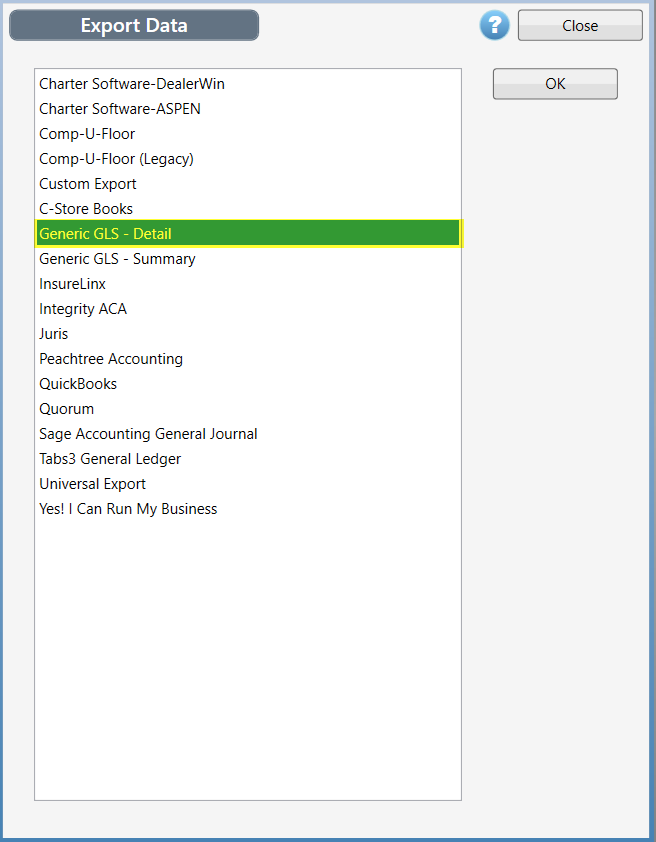
When performing this step for the first time, you will need to complete some setup in PenSoft. Click the Setup button at the top right of the Generic GLS – Detail screen. A setup screen will appear as follows:
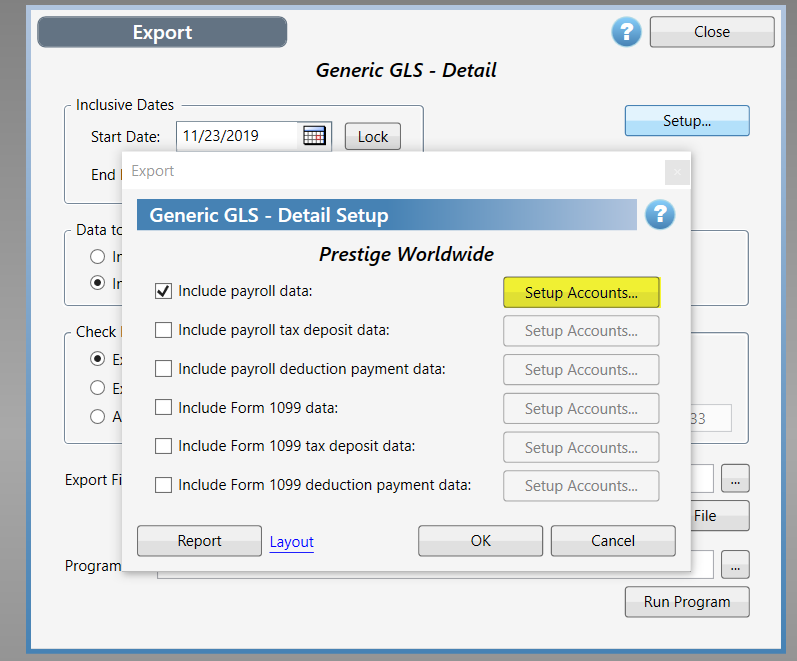
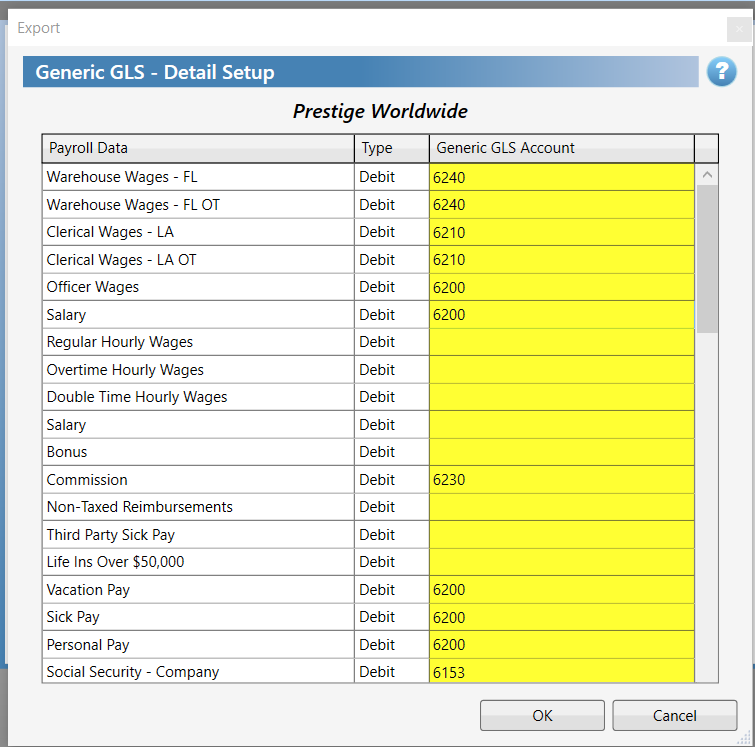
Click the Include payroll data option at the very top and then click the Setup Accounts button highlighted above. You will then enter all the applicable BMS General Ledger Payroll Accounts (from your chart of accounts) into the Generic GLS Account fields and click OK to complete. See example below:
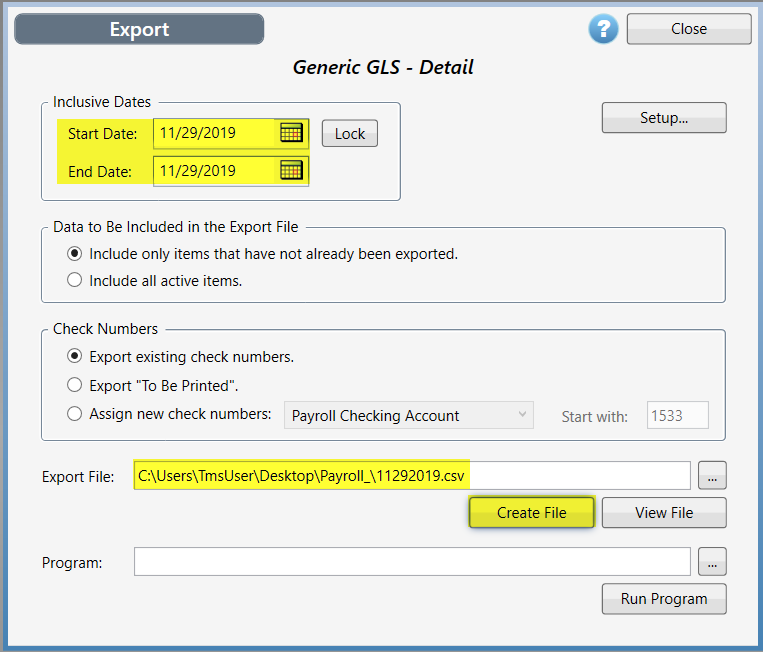
Back at the main Generic GLS – Detail screen, select the applicable Start & End Date (typically the current payroll date), select the location to save the file in the Export File field, and rename the file to something unique, such as 11292019 to match the date—the file name will default to “glspen.” Also be sure the file has the .csv extension, and then click the Create File button.
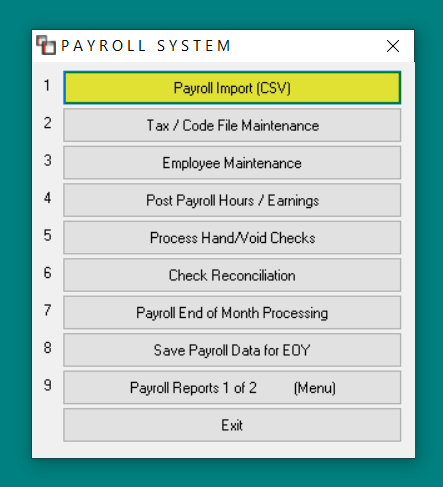
In BMS, click the Payroll menu option (click OK the Payroll Termination Notice) and then select the Payroll Import (CSV) module. It should be the first option.
The Payroll Import screen will appear as follows (this is a similar screen to the G/L Journal Import screen, but this one is just for Payroll):
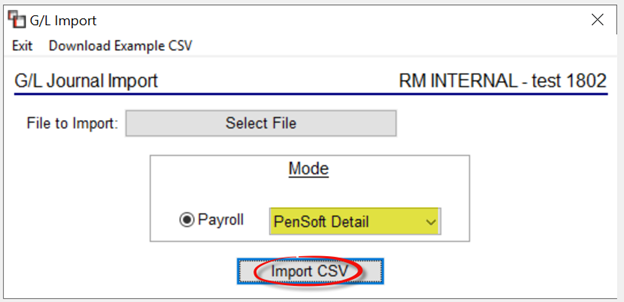
For PenSoft Payroll, make sure PenSoft Detail is selected in the Mode box. Next, click the Select File button, and locate the exported file created in the previous step. Click Open. Once the file is selected, click the Import CSV button.
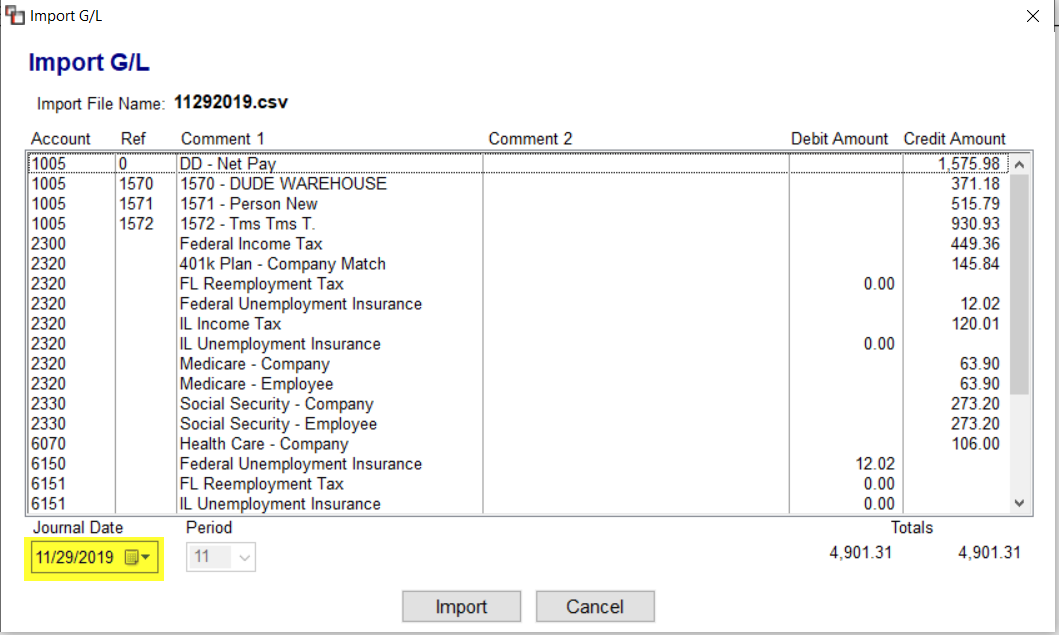
Review the data about to be imported, making sure the Debit and Credit Amounts are in balance. Also, make sure the Journal Date is the Payroll Date. Totals for each employee will be lumped together. Click the Import button to proceed. This process will create a separate Payroll Journal that can be printed and cleared separate from your other G/L Journals. See below for an example of the Import Detail screen.
From the PenSoft program, click the Export tab and select Generic GLS – Details as detailed below:
When performing this step for the first time, you will need to complete some setup in PenSoft. Click the Setup button at the top right of the Generic GLS – Detail screen. A setup screen will appear as follows:
Click the Include payroll data option at the very top and then click the Setup Accounts button highlighted above. You will then enter all the applicable BMS General Ledger Payroll Accounts (from your chart of accounts) into the Generic GLS Account fields and click OK to complete. See example below:
Back at the main Generic GLS – Detail screen, select the applicable Start & End Date (typically the current payroll date), select the location to save the file in the Export File field, and rename the file to something unique, such as 11292019 to match the date—the file name will default to “glspen.” Also be sure the file has the .csv extension, and then click the Create File button.
In BMS, click the Payroll menu option (click OK the Payroll Termination Notice) and then select the Payroll Import (CSV) module. It should be the first option.
The Payroll Import screen will appear as follows (this is a similar screen to the G/L Journal Import screen, but this one is just for Payroll):
For PenSoft Payroll, make sure PenSoft Detail is selected in the Mode box. Next, click the Select File button, and locate the exported file created in the previous step. Click Open. Once the file is selected, click the Import CSV button.
Review the data about to be imported, making sure the Debit and Credit Amounts are in balance. Also, make sure the Journal Date is the Payroll Date. Totals for each employee will be lumped together. Click the Import button to proceed. This process will create a separate Payroll Journal that can be printed and cleared separate from your other G/L Journals. See below for an example of the Import Detail screen.