The optimal screen resolution for use with BMS is 1280 x 800. The minimum required resolution is 1280 x 768 (you can auto-hide the taskbar). The DPI must be set at 100%. The window size for BMS applications is fixed and cannot be maximized.
We suggest leaving your computer's settings at their recommended default levels regarding display scaling. For most computers, this will be 100%. This will ensure all text and data display properly on the screen.
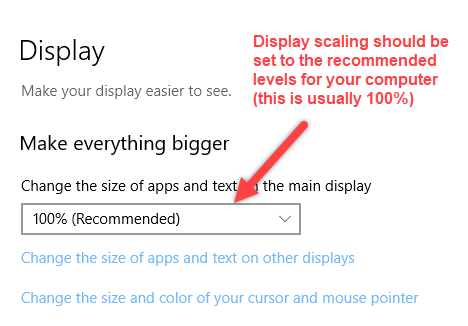
If the PCs font size/scaling value is the proper 100%, yet you are still running into issues with the titles of menus and certain labels/fields inside the system not fitting, it is likely you are missing two key fonts on your PC, especially for Windows 10 users. Those two fonts are MS Serif Regular and MS Sans Serif Regular.
The following is a link to a video that covers how to install fonts on Windows 10: https://www.youtube.com/watch?v=W77sZEkkIAk
Download attached font file: https://adhawk1234.my.salesforce.com/sfc/p/4T000000Fmqu/a/Un000001jm4j/lqZgN1rIMIpSkmXU6hRpmgV_jviupk77hU9yONEt9XA
We suggest leaving your computer's settings at their recommended default levels regarding display scaling. For most computers, this will be 100%. This will ensure all text and data display properly on the screen.
If the PCs font size/scaling value is the proper 100%, yet you are still running into issues with the titles of menus and certain labels/fields inside the system not fitting, it is likely you are missing two key fonts on your PC, especially for Windows 10 users. Those two fonts are MS Serif Regular and MS Sans Serif Regular.
The following is a link to a video that covers how to install fonts on Windows 10: https://www.youtube.com/watch?v=W77sZEkkIAk
Download attached font file: https://adhawk1234.my.salesforce.com/sfc/p/4T000000Fmqu/a/Un000001jm4j/lqZgN1rIMIpSkmXU6hRpmgV_jviupk77hU9yONEt9XA