You can access Customer Notes (explained above in the Customer Status Inquiry module section) option from this screen by clicking on the icon. Also, if a Deposit is tied to a system Invoice, you can double-click to View/Print the Invoice. You can also right-click on an item to get the following options: View Job and View Invoice/Credit Memo.
Customer Deposit Inquiry
Customer Deposit Inquiry This module works much the same as the Customer Status Inquiry module except you will only be able to view open Deposits on a Customer’s account. The Credit Status screen looks similar to the one in the Customer Status Inquiry module. When you enter this module, after making a Customer selection, the main screen for this module appears as follows:
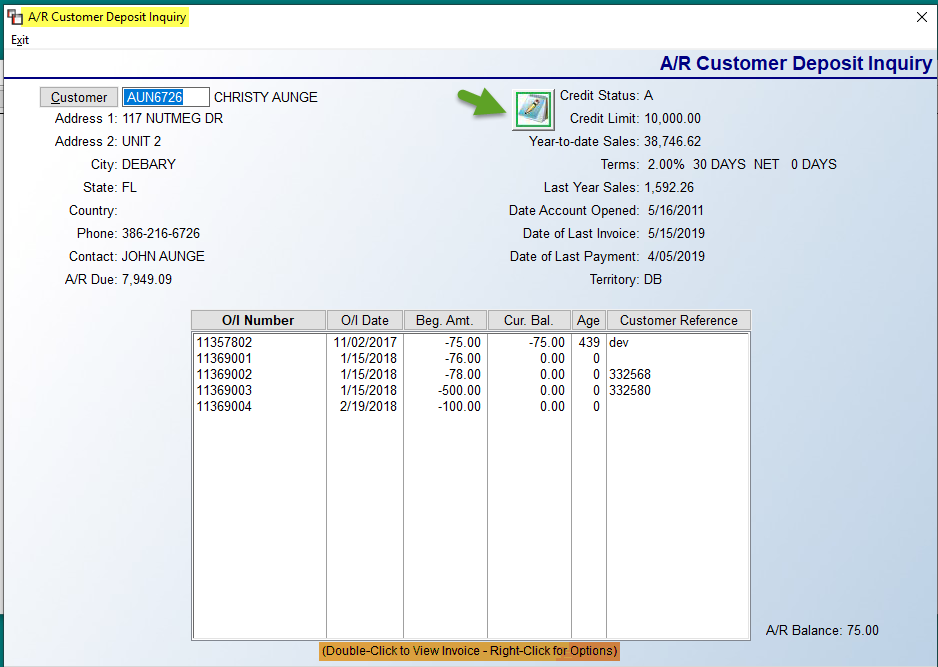
You can access Customer Notes (explained above in the Customer Status Inquiry module section) option from this screen by clicking on the icon. Also, if a Deposit is tied to a system Invoice, you can double-click to View/Print the Invoice. You can also right-click on an item to get the following options: View Job and View Invoice/Credit Memo.
You can access Customer Notes (explained above in the Customer Status Inquiry module section) option from this screen by clicking on the icon. Also, if a Deposit is tied to a system Invoice, you can double-click to View/Print the Invoice. You can also right-click on an item to get the following options: View Job and View Invoice/Credit Memo.