Returning Material on a Work Order -- Text Version Only
Returning Material on a Work Order:
If material comes back from a job and you would like to adjust the system to reflect that, it can be done through the Work Order Print module. To begin this process, enter back into the Work Order Select Lines screen and place the cursor on the line that originally contained the material. Just below the last line on the screen, a function key prompt will appear as follows: (F5) Return Material To Order. When you hit the F5 key, the system will first prompt the following--provided the Irregular return in W/O Print control has been enabled in System Control--Return material without affecting Job Cost. If you select “Yes” at this prompt, any cost associated with the material will automatically move to the Over Bill field/value on the Inventory Record. If you select “No” at this prompt, Job Cost will be updated. The system will then prompt a Return Material To Job box as follows:
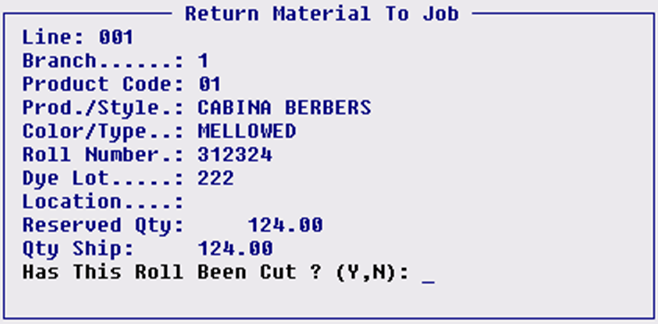
If the material has not been physically cut, type an “N” for no at this prompt and the system will adjust the Prev.Ship and ShipNow fields accordingly. If the material has been cut and you want the system to keep track of those cuts on the Work Order, type a “Y” for yes at this prompt. The system will bring up a Qty To Return field and prompt the total amount that was previously shipped. Type in the amount of the first cut and hit enter. The system will prompt the following: Enter New Roll Number For Cut. The system will automatically fill in this field with the original roll number and then add an “*01” at the end. This will give the cut a unique roll number while still identifying it as part of the original roll; hit enter to accept. The system will then prompt the following: Enter Location For Cut. Type a bin location or hit enter to skip this prompt. The system will then place the cursor back at the Qty To Return field. Keep entering cut sizes until all cuts have been returned in the system.
If some of the material was installed on the job site and does not need to be returned, you can zero out the Qty To Return field the last time through. A reminder appears at the bottom of the box as follows: Enter Zero To Quit With Current Amount Returned. When you hit the enter key after entering “0.00”, the system will prompt the following: End Return To Stock (Y,N): N. Type a “Y” to proceed. Whenever you are returning cuts off an original roll through the F5 key, when you exit that feature, the system will bring up a box at the top of the screen prompting you to exit the Work Order Print module so the system can update those lines. Hit enter and the system will place the cursor at the beginning of the Work Order Print module at the Job Number field. Hit enter to go back into the Work Order. To adjust labor lines where only partial work was performed that shipped out on a Work Order, place the cursor on the labor line and hit enter. Use the (F1) Zero/Edit PrevShip function to adjust the PrevShip field to reflect the exact amount of labor that was performed. You will then be able to re-ship the amount that was not completed on another Work Order.
To adjust Labor Lines where only partial work was performed that shipped out on a Work Order, place the cursor on the Labor Line and hit enter. Use the (F1) Zero/Edit PrevShip function to adjust the PrevShip field to reflect the exact amount of labor that was performed. You will then be able to “re-ship” the amount that was not completed on another Work Order.
If material comes back from a job and you would like to adjust the system to reflect that, it can be done through the Work Order Print module. To begin this process, enter back into the Work Order Select Lines screen and place the cursor on the line that originally contained the material. Just below the last line on the screen, a function key prompt will appear as follows: (F5) Return Material To Order. When you hit the F5 key, the system will first prompt the following--provided the Irregular return in W/O Print control has been enabled in System Control--Return material without affecting Job Cost. If you select “Yes” at this prompt, any cost associated with the material will automatically move to the Over Bill field/value on the Inventory Record. If you select “No” at this prompt, Job Cost will be updated. The system will then prompt a Return Material To Job box as follows:
If the material has not been physically cut, type an “N” for no at this prompt and the system will adjust the Prev.Ship and ShipNow fields accordingly. If the material has been cut and you want the system to keep track of those cuts on the Work Order, type a “Y” for yes at this prompt. The system will bring up a Qty To Return field and prompt the total amount that was previously shipped. Type in the amount of the first cut and hit enter. The system will prompt the following: Enter New Roll Number For Cut. The system will automatically fill in this field with the original roll number and then add an “*01” at the end. This will give the cut a unique roll number while still identifying it as part of the original roll; hit enter to accept. The system will then prompt the following: Enter Location For Cut. Type a bin location or hit enter to skip this prompt. The system will then place the cursor back at the Qty To Return field. Keep entering cut sizes until all cuts have been returned in the system.
If some of the material was installed on the job site and does not need to be returned, you can zero out the Qty To Return field the last time through. A reminder appears at the bottom of the box as follows: Enter Zero To Quit With Current Amount Returned. When you hit the enter key after entering “0.00”, the system will prompt the following: End Return To Stock (Y,N): N. Type a “Y” to proceed. Whenever you are returning cuts off an original roll through the F5 key, when you exit that feature, the system will bring up a box at the top of the screen prompting you to exit the Work Order Print module so the system can update those lines. Hit enter and the system will place the cursor at the beginning of the Work Order Print module at the Job Number field. Hit enter to go back into the Work Order. To adjust labor lines where only partial work was performed that shipped out on a Work Order, place the cursor on the labor line and hit enter. Use the (F1) Zero/Edit PrevShip function to adjust the PrevShip field to reflect the exact amount of labor that was performed. You will then be able to re-ship the amount that was not completed on another Work Order.
To adjust Labor Lines where only partial work was performed that shipped out on a Work Order, place the cursor on the Labor Line and hit enter. Use the (F1) Zero/Edit PrevShip function to adjust the PrevShip field to reflect the exact amount of labor that was performed. You will then be able to “re-ship” the amount that was not completed on another Work Order.